# Create an Amazon Mechanical Turk project
This section describes how to create an Amazon Mechanical Turk project on the Mechanical Turk Requester website at [https://requester.mturk.com/](https://requester.mturk.com/).
The Mechanical Turk *project* contains all of the information associated with a Human Intelligence Task (HIT) and the data objects that are processed by Workers using that HIT. A *HIT* is a single, self-contained task that you create for Workers. A HIT is made up of an HTML page that provides Workers with a UI, and HIT properties such as an expiration date and reward amount for succesfully completed assignments.
A *batch* is a group of Worker assignments that are created by using the configurations of a single HIT to process multiple data objects. For example, let's say you upload 100 images to an image classification project and publish a batch of 100 HITs. For each Worker assignment, you ask workers to classify a single image. If you choose to have multiple workers classify individual objects (such as images), it is possible for a single HIT to have multiple assignments.
Mechanical Turk provides 29 pre-built HTML templates for four categories: Survey, Vision, Language, and Other. You can modify these templates while creating a HIT to customize the Worker UI.

You must create a Mechanical Turk project before you can create a batch of Human Intelligence Tasks (HITs). To create a project, start with one of the provided sample project templates and customize it.
The following procedure describes how to create a project using the **Image Tagging** template. This procedure is identical for all other templates.
You need to take the following steps when you create a Mechanical Turk project:
+ Define the projects properties.
+ Design the project's HTML layout.
+ Preview the project.
For the example project, assume you have a large number of images that you want to tag with geographical locations and landmarks. In the procedure, you create a HIT using the **Image Tagging** template, customize it to provide your images, and then modify the input fields to collect this set of information from the workers.
## Create a project
Follow the steps in this procedure to create a project.
**To create a project**
1. Go to the Mechanical Turk Requester website at [https://requester.mturk.com/](https://requester.mturk.com/), choose **Create**, and then choose **New Project**. In some cases, the new project page might be your landing page when you log in.
1. In the template selector, choose a template on the left and a preview it on the right. For this example, choose **Tagging Images** in the list, and then choose **Create Project**.
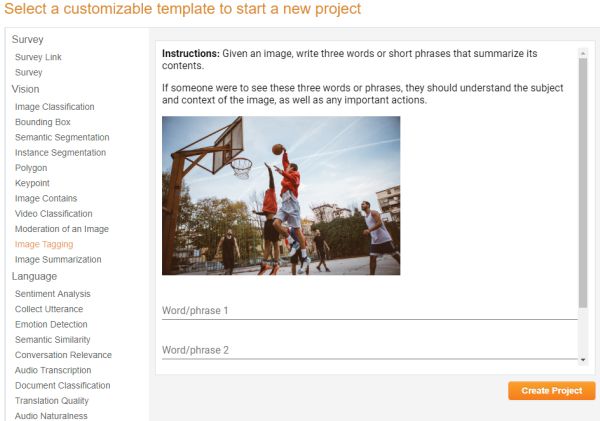
1. On the **Edit Project** page, choose the **Edit Properties** tab, and then enter the information for your HIT.
1. In the **Describe your HIT to Workers** section of the **Edit Properties** tab, do the following:
[See the AWS documentation website for more details](http://docs.aws.amazon.com/AWSMechTurk/latest/RequesterUI/CreatingYourBatchofHITs.html)
1. In the **Setting up your task** section of the **Edit Properties** tab, do the following:
[See the AWS documentation website for more details](http://docs.aws.amazon.com/AWSMechTurk/latest/RequesterUI/CreatingYourBatchofHITs.html)
1. In the **Worker requirements** section of the **Edit Properties** tab, do the following:
[See the AWS documentation website for more details](http://docs.aws.amazon.com/AWSMechTurk/latest/RequesterUI/CreatingYourBatchofHITs.html)
1. Choose the **Design Layout** tab and edit the HTML of the template. You can copy the HTML in the editor into another file. To preview HTML the page, open the file in a browser. To ensure your form elements work well with Amazon Mechanical Turk, we recommend using [our Custom HTML Elements](https://docs.aws.amazon.com/sagemaker/latest/dg/sms-ui-template-reference.html).
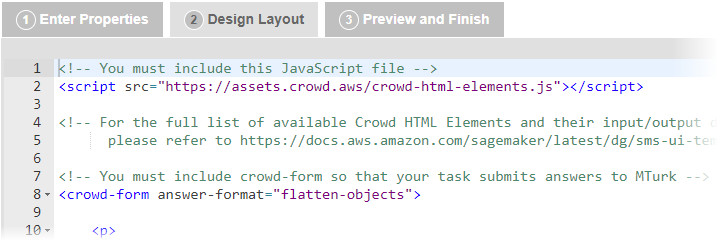
1. Create a variable by putting the a dollar sign before curly braces around the name of a column in your HIT data file. This can be text in the body of your template, the source URL in an image or video tag, and a variety of other things. The value of the variable comes from a column in your **HIT data file** with the same value in its header row. For information that must change from task to task, use **variables**. In the sample template, the image tag contains a variable for the source of the image: `${image_url}`.
1. Create your HIT data file. The HIT data file is a comma-separated value (`.csv`) file that contains the data values used to replace your variables. Many spreadsheet applications, including Microsoft Excel, can save files in the .`csv` file format.
**About HIT data files**
Each new line in the file represents a new HIT. The number of data values in one row should exactly match the number of variables used in your project. The first row in the .`csv` HIT data file contains the column headings for the data value columns. The order in which you use the variables in the project template does not need to match the order of columns in the .`csv` file.
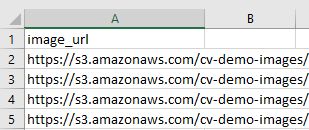
The names of the template variables must match the column headings for the values in your HIT data file. For example, if you use the `${image_url}` variable, the HIT data file must have a column that has the **image\_url** heading.
Your HIT data file cannot have line breaks between data cells and `\r` is not supported as a line break character. MacOS computers insert this character when they convert a Microsoft Excel table into a .`csv` file.
If your HITs contain images or videos, you must include links to them in the HIT data file. The images and videos must be publicly accessible. The user interface does not provide a tool for uploading images or videos. Consider using one of the publicly-available tools to upload your images into Amazon S3.
1. Mechanical Turk returns results in a table that is stored in a `.csv` file. The number of input and answer fields in one HIT determines the number of columns in the **Results** table. One row in the **Results** table represents a complete set of answers for one HIT as shown in the following example.

1. Choose **Save** periodically to save the HTML of your project so you don't lose your work.
Mechanical Turk deletes a project if you don't use the project for 120 consecutive days. If you need to access your project for a longer period of time, we recommend that you copy the HTML and save it on your own system.
1. Choose the **Preview and Finish** tab, review the preview of the template, and then do the following:
+ If you are satisfied with your changes, choose **Finish**.
+ If you need to make changes, choose the **Design Layout** tab and fix the HTML.
**Note**
Variables are not filled in at this point.
After you choose **Finish**, the **Create** page is displayed and your project appears in your list of existing projects.
Next, publish a batch with this template to make it available to workers. For information about publishing a batch, see [Publish a batch of HITs](PublishingYourBatchofHITs.md).