Connecting Slack
You can connect AWS DevOps Agent to Slack in two ways:
One-way notifications — AWS DevOps Agent posts incident response findings, root cause analyses, and mitigation plans to public or private Slack channels that you select.
Bidirectional communication — AWS DevOps Agent also receives and responds to messages in a private Slack channel. Mention the app to start a conversation. AWS DevOps Agent replies in a thread.
You can enable bidirectional communication only in private Slack channels. Public channels support one-way notifications only.
Before you begin
To connect AWS DevOps Agent with Slack, verify that you have the following:
Access to a Slack workspace with permission to install and authorize third-party applications.
Permission to configure capability providers and communications integrations in AWS DevOps Agent.
Permission to create IAM roles from the AWS DevOps Agent console (required for bidirectional communication).
The Slack channel ID for each channel that you want to associate.
Each AWS Region has its own AWS DevOps Agent app in the Slack Marketplace
Throughout this guide, references to the AWS DevOps Agent app refer to the regional app for your Agent Space. When a command includes <Region>, replace it with the Region suffix shown in your app name. For example, use US East (N. Virginia) or EU (Frankfurt). The hyphen between the app name and Region suffix is part of the literal Slack app name.
Connecting Slack to your Agent Space
Follow these steps to register Slack, associate a channel, and optionally enable bidirectional communication.
Step 1: Open the AWS DevOps Agent console
Open the AWS DevOps Agent console
. Open an Agent Space, and choose the Capabilities tab.
Under Communications, choose Add or Add integration.

Step 2: Register Slack
If Slack is already registered with your AWS account, choose Add under Communications, select the registered Slack workspace, and skip to Step 5.
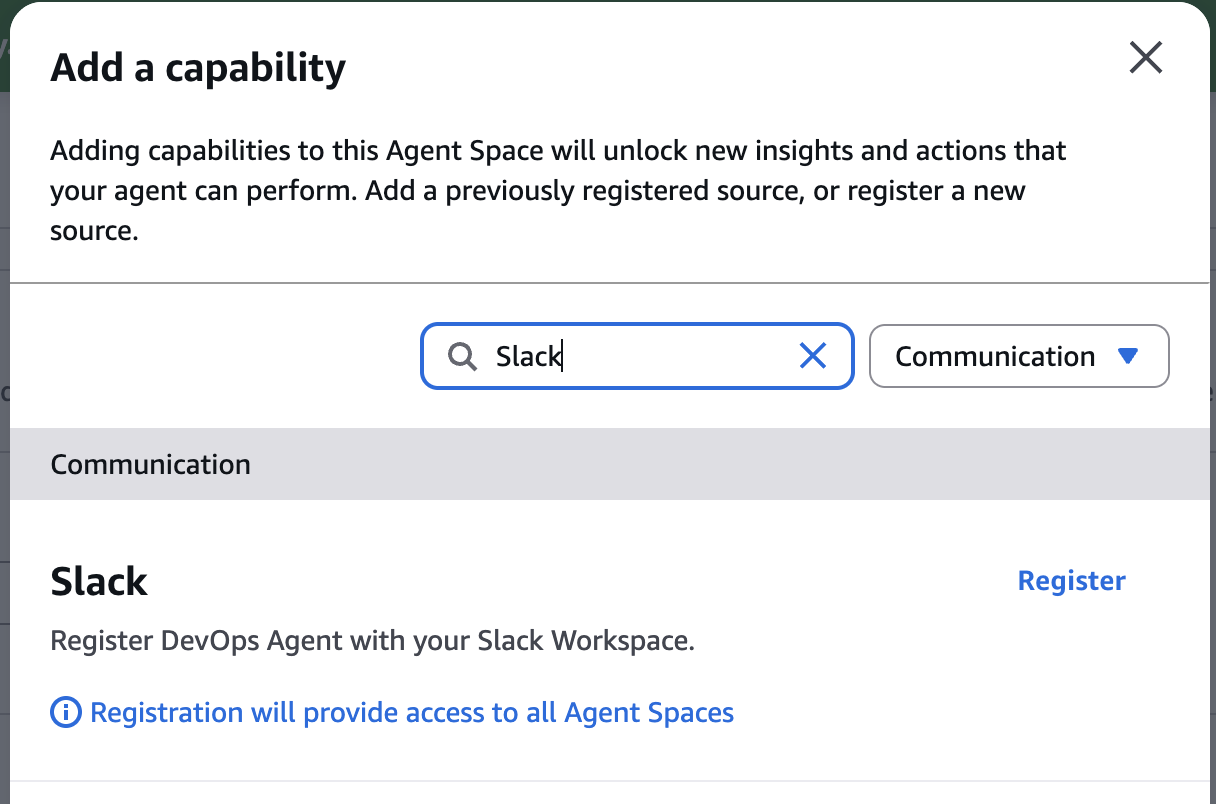
In the Add a capability dialog, search for Slack and choose Register.
Step 3: Review registration instructions
On the Register Slack with DevOps Agent page, review the workspace installation steps.
Choose Next to begin the Slack authorization flow.

Step 4: Authorize the Slack app
On the Slack authorization page, choose the workspace that you want to connect from the Workspace dropdown.
Review the permissions that the app requests, and choose Allow.
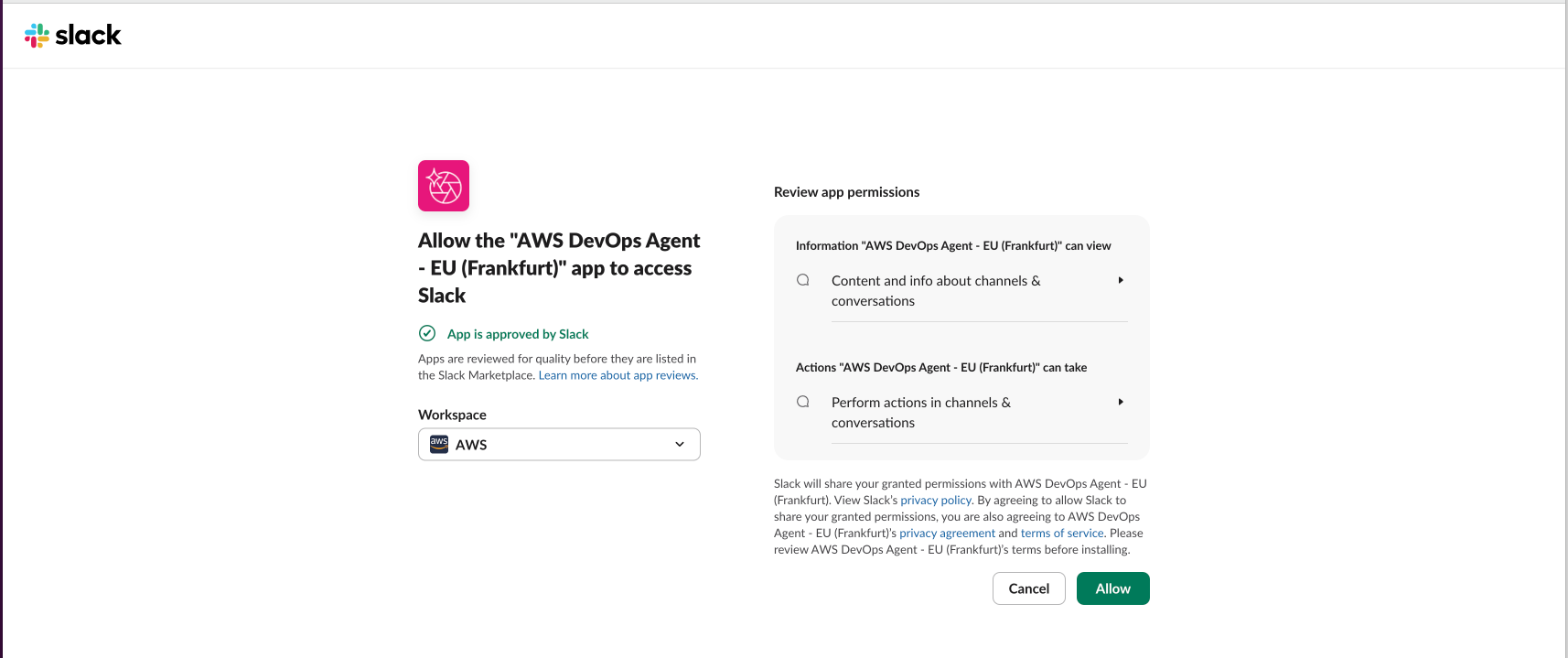
After authorization, Slack redirects you to the AWS DevOps Agent console and displays a success message.
Step 5: Enter the Slack channel ID
Under Slack channel for communication, enter the Channel ID of the Slack channel that you want to associate with this Agent Space.
To find the channel ID, open the channel in Slack, choose the channel name at the top, and copy the Channel ID from the channel details panel.

Step 6: (Optional) Enable bidirectional communication
To use one-way notifications only, leave Bidirectional mode turned off and skip to Step 9.
To enable bidirectional communication:
Under Bidirectional communication, turn on Bidirectional mode.
Under IAM role configuration, choose one of the following options:
Auto-create a new DevOps Agent role — The console creates the role with the AIDevOpsChannelAccessPolicy AWS managed policy attached. You can modify the role later.
Assign an existing role — Provide the ARN of a role that AWS DevOps Agent verifies.
Create a new DevOps Agent role using a policy template — Use the provided details to create the role manually in the IAM console.
Choose Next.

Step 7: Invite DevOps Agent to the channel
For private channels with bidirectional mode enabled, you must add the AWS DevOps Agent app to the channel. You can skip this step for public channels used for one-way notifications only.
Go to the private channel in Slack.
Add the AWS DevOps Agent app using one of the following methods:
Open the channel details, choose the Integrations tab, choose Add under Apps, and search for AWS DevOps Agent.
Enter the following command in the channel, replacing
<Region>with your Region suffix:
/invite @AWS DevOps Agent - <Region>
For example, for an Agent Space in Europe (Frankfurt):
/invite @AWS DevOps Agent - EU (Frankfurt)

Step 8: Confirm the invite in Slack
In Slack, verify that you see a confirmation that the app was added to the channel. The message includes the full regional app name.

Step 9: Complete the association
Return to the AWS DevOps Agent console.
Choose Add to create the channel association.

Step 10: Verify the association
On the Communications page, confirm that the Slack association appears in the Integrations table.
If you enabled bidirectional communication, verify that the Bidirectional column shows Enabled and the Bidirectional role column shows the IAM role ARN.

Your Agent Space is now connected to Slack.
Setting up bidirectional communication in Slack
After you complete the association with bidirectional mode enabled, set up the channel binding from Slack:
In the associated private channel, send this exact app mention as a new top-level message:
@AWS DevOps Agent - <Region> setup

If the channel has one eligible Agent Space association, AWS DevOps Agent configures the binding and posts a confirmation.
If the channel has multiple eligible associations, AWS DevOps Agent posts a picker. Select the Agent Space that you want the channel to use, and wait for the confirmation.
Run setup again to repair a stale binding or to select an eligible association again. You don't need the /setup slash command.
Chatting with AWS DevOps Agent in Slack
To start a conversation, mention the AWS DevOps Agent app in a new top-level message in the associated private channel and include your request. For example:
@AWS DevOps Agent - <Region> What can you do?
AWS DevOps Agent replies in a thread under your message. Open the thread to view the response, and send follow-up messages in the same thread to continue the conversation.
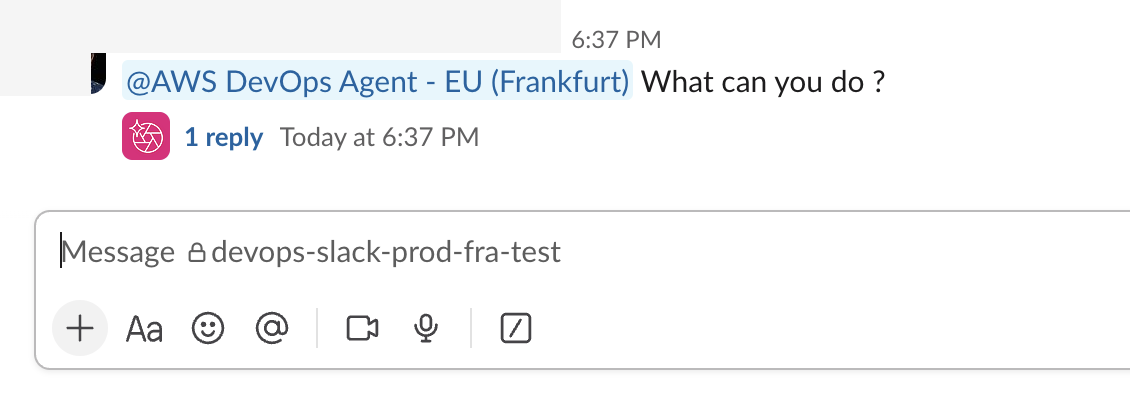

Mention the app in each message, including replies within the thread. Replace <Region> with the AWS Region suffix shown in your app name. For example:
@AWS DevOps Agent - <Region> Tell me more about the Lambda errors
Use separate top-level messages to start separate conversations. AWS DevOps Agent can help with tasks supported by your Agent Space, including:
Starting, viewing, and guiding investigations into incidents and operational issues
Exploring AWS resources, metrics, logs, and topology
Reviewing and responding to prevention recommendations
Running supported release management and testing workflows
The responses and actions available in Slack depend on the configuration and permissions of the associated Agent Space.
Switching between bidirectional communication and one-way notifications
You can edit the Slack association at any time. Bidirectional mode can be enabled only for private channel associations:
Open the Agent Space, and choose Capabilities.
Under Communications, select the Slack association and choose Edit.
Turn Bidirectional mode on to allow conversations in the private channel, or turn it off to use the channel for one-way notifications only.
Save your changes.
To stop using a channel with the Agent Space, select its association and choose Remove. Removing a channel association does not unregister the Slack workspace from AWS DevOps Agent.
Sharing a Slack workspace across multiple AWS accounts
You can share one Slack workspace across multiple AWS accounts. This works even when an Agent Space uses a customer managed key for encryption. You do not need a separate Slack workspace for each AWS account.
You can register the same Slack workspace with more than one Agent Space or AWS account. Each registration is independent. Registering a workspace again does not overwrite an existing registration.
Troubleshooting Slack communication
If AWS DevOps Agent does not respond to a message in a bidirectional channel, verify the following:
The Slack channel ID matches the private channel associated with the Agent Space.
Bidirectional is Enabled for the association in the AWS DevOps Agent console.
The IAM role shown for the association exists and has the permissions created by the console.
The regional AWS DevOps Agent app is a member of the private channel.
The channel binding is active. Run
@AWS DevOps Agent - <Region> setupagain if the binding appears stale.The correct Agent Space association was selected if setup showed a picker.
The first message in a conversation mentions the regional AWS DevOps Agent app.
The response is not already available in a thread under the original message.
If the workspace is not available when you create an association, confirm that you registered Slack in the same AWS account and Region as your Agent Space.
Providing feedback through Slack
You can submit product feedback directly in a bidirectional Slack channel. Mention the app and describe the feedback you want to file. AWS DevOps Agent summarizes your input, confirms the details with you, and submits it to the product team. Replace <Region> with the AWS Region suffix shown in your app name. For example:
@AWS DevOps Agent - <Region> I want to share feedback on how notifications work
AI-generated content
We use large language models to generate investigation findings, root-cause analyses, mitigation recommendations, and conversational responses. These outputs might be inaccurate or incomplete. Verify AI-generated information before acting on it.
Data handling and privacy
We retain data associated with your Agent Space for as long as necessary to provide the service. This data includes investigation journals, chat messages, and operational data. You can delete your Agent Space at any time to remove all associated data.
To request access to or deletion of your data, delete the Agent Space through the AWS Management Console or contact AWS Support
For information about how we protect your data, see Security and data protection. We handle information in accordance with the AWS Privacy Notice
