# AWS IAM credentials
AWS IAM credentials authenticate with your AWS account through locally stored access keys.
The following sections describe how to set up IAM credentials to authenticate with your AWS account from the AWS Toolkit for Visual Studio.
**Important**
Before setting up IAM credentials to authenticate with your AWS account, note that:
If you've already set IAM credentials through another AWS service (such as the AWS CLI), then the AWS Toolkit for Visual Studio automatically detects those credentials.
AWS recommends using AWS IAM Identity Center authentication. For additional information about AWS IAM best practices, see the [Security best practice in IAM](https://docs.aws.amazon.com/IAM/latest/UserGuide/best-practices.html) section of the *AWS Identity and Access Management User Guide*.
To avoid security risks, don't use IAM users for authentication when developing purpose-built software or working with real data. Instead, use federation with an identity provider such as AWS IAM Identity Center. For more information see the [What is IAM Identity Center?](https://docs.aws.amazon.com//singlesignon/latest/userguide/what-is.html) in the *AWS IAM Identity Center User Guide*.
## Creating an IAM user
Before you can set up the AWS Toolkit for Visual Studio to authenticate with your AWS account, you need to complete **Step 1: Create your IAM user** and **Step 2: Get your access keys** in the [Authenticate using long-term credentials](https://docs.aws.amazon.com/singlesignon/latest/userguide/what-is.html) topic in the *AWS SDKs and Tools Reference Guide*.
**Note**
**Step 3: Update the shared credentials** is optional.
If you complete Step 3, the AWS Toolkit for Visual Studio automatically detects your credentials from the `credentials file`.
If you haven't completed Step 3, the AWS Toolkit for Visual Studio walks you through the process of creating a `credentials file` as described in the [Creating a credentials file from the AWS Toolkit for Visual Studio](https://docs.aws.amazon.com/) section, located below.
## Creating a credentials file
To add a user to or create a `credentials file` from the AWS Toolkit for Visual Studio:
**Note**
When new user profile is added from the toolkit:
If a `credentials file` already exists, the new user information is added to the existing file.
If a `credentials file` doesn't exist a new file is created.
1. From the AWS Explorer choose **New Account Profile** icon to open the **New Account Profile** dialog.
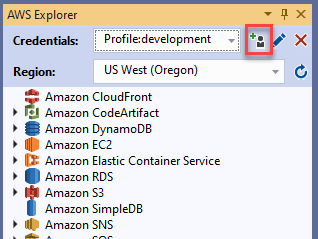
1. Complete the required fields in the **New Account Profile** dialog and choose the **OK** button to create the IAM user.
## Editing IAM user credentials from the toolkit
To edit IAM user credentials from the toolkit, complete the following steps:
1. From the **Credentials** drop-down in the AWS Explorer, choose the IAM user credential you want to edit.
1. Choose the **Edit Profile** icon to open the **Edit Profile** dialog.
1. From the **Edit Profile** dialog complete your updates and choose the **OK** button to save your changes.
To delete IAM user credentials from the toolkit, complete the following steps:
1. From the **Credentials** drop down in the AWS Explorer, choose the IAM user credential you want to delete.
1. Choose the **Delete Profile** icon to open the **Delete Profile** prompt.
1. Confirm that you want to delete the profile to remove it from your `Credentials file`.
**Important**
Profiles that support advanced access features, such as IAM Identity Center or Multi-factor authentication (MFA) in the **Edit Profile** dialog, can't be edited from the AWS Toolkit for Visual Studio. To make changes to these types of profiles, you must edit the `credentials file`using a text editor.
## Editing IAM user credentials from a text editor
In addition to managing IAM users with the AWS Toolkit for Visual Studio, you can edit `credential files` from your preferred text editor. The default location of the `credential file` in Windows is `C:\Users\{{USERNAME}}\.aws\credentials`.
For more details on the location and structure of `credential files`, see the [Shared config and credentials files](https://docs.aws.amazon.com/sdkref/latest/guide/file-format.htm) section of the *AWS SDKs and Tools Reference guide*.
## Creating IAM users from the AWS Command Line Interface (AWS CLI)
The AWS CLI is another tool you can use to create an IAM user in the `credentials file`, using the command `aws configure`.
For detailed information about creating IAM users from the AWS CLI see the [Configuring the AWS CLI](https://docs.aws.amazon.com/cli/latest/userguide/cli-chap-configure.html) topics in the *AWS CLI User Guide*.
The Toolkit for Visual Studio supports the following configuration properties:
```
aws_access_key_id
aws_secret_access_key
aws_session_token
credential_process
credential_source
external_id
mfa_serial
role_arn
role_session_name
source_profile
sso_account_id
sso_region
sso_role_name
sso_start_url
```