本文為英文版的機器翻譯版本,如內容有任何歧義或不一致之處,概以英文版為準。
為 Database Insights 建立自訂 IAM 政策
對於沒有 AmazonRDSPerformanceInsightsReadOnly或 AmazonRDSPerformanceInsightsFullAccess政策的使用者,您可以透過建立或修改使用者管理的 IAM 政策來授予對 Database Insights 的存取權。當您將政策連接至 IAM 許可集或角色時,收件人可以使用 Database Insights。
建立自訂政策
前往 https://console.aws.amazon.com/iam/
開啟 IAM 主控台。 -
在導覽窗格中,選擇政策。
-
選擇 Create policy (建立政策)。
-
在建立政策頁面上,選擇 JSON 選項。
-
針對 AmazonRDSPerformanceInsightsReadOnly 或 AmazonRDSPerformanceInsightsFullAccess 政策,複製並貼上在《AWS 受管政策參考指南》 中的 JSON 政策文件區段中提供的文字。
-
選擇 Review policy (檢閱政策)。
-
為政策提供名稱並選擇性輸入描述,然後選擇 Create policy (建立政策)。
現在您可以將政策連接到許可集或角色。以下程序假設您已有基於此用途使用的使用者。
將政策連接至使用者
在以下網址開啟 IAM 主控台:https://console.aws.amazon.com/iam/
。 -
在導覽窗格中,選擇 Users (使用者)。
-
從清單中選擇現有的使用者。
重要
若要使用 Database Insights,請確定除了自訂政策之外,您還可以存取 Amazon RDS。例如,
AmazonRDSPerformanceInsightsReadOnly預先定義政策提供對 Amazon RDS 的唯讀存取。如需更多詳細資訊,請參閱 使用政策管理存取權。 -
在 Summary (摘要) 頁面上,選擇 Add permissions (新增許可)。
-
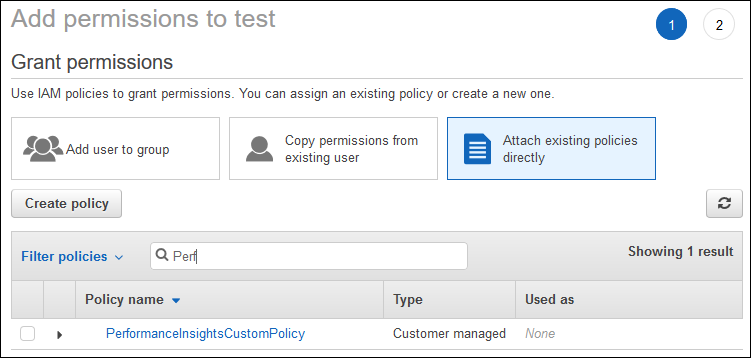
選擇 Attach existing policies directly (直接連接現有政策)。對於搜尋,請輸入政策名稱的前幾個字母,如下圖所示。
-
選擇您的政策,然後選擇 Next: Review (下一步:檢閱)。
-
選擇 Add permissions (新增許可)。
