本文為英文版的機器翻譯版本,如內容有任何歧義或不一致之處,概以英文版為準。
# 步驟 1:設定 Managed AWS Microsoft AD Active Directory AWS 的環境
您必須先設定 Amazon EC2 金鑰對,以便加密所有登入資料,才能在 AWS 測試實驗室中建立 AWS Managed Microsoft AD。
## 建立金鑰對
如果您已有金鑰對,則可以略過此步驟。如需 Amazon EC2 金鑰對的詳細資訊,請參閱[建立金鑰對](https://docs.aws.amazon.com//AWSEC2/latest/UserGuide/create-key-pairs.html)。
**建立一組金鑰對**
1. 登入 AWS 管理主控台 ,並在 [https://console.aws.amazon.com/ec2/](https://console.aws.amazon.com/ec2/):// 開啟 Amazon EC2 主控台。
1. 在導覽窗格的 **Network & Security** (網路與安全) 下,選擇 **Key Pairs** (金鑰對),然後選擇 **Create Key Pair** (建立金鑰對)。
1. 在 **Key pair name (金鑰對名稱)** 中,輸入 **AWS-DS-KP**。在 **Key pair file format (金鑰對檔案格式)** 中,選取 **pem**,然後選擇 **Create (建立)**。
1. 您的瀏覽器會自動下載私有金鑰檔案。檔案名稱是您在建立金鑰對時所指定的名稱,副檔名為 `.pem`。將私有金鑰檔案存放在安全的地方。
**重要**
這是您儲存私有金鑰檔案的唯一機會。當您每次解密執行個體密碼來啟動執行個體與對應的私有金鑰時,都需要提供您的金鑰對名稱。
## 建立、設定和對等兩個 Amazon VPCs
如下圖所示,完成此多步驟程序時,您將建立並設定兩個公有 VPC、每個 VPC 兩個公有子網路、每個 VPC 一個網際網路閘道,並在 VPC 之間設定一個 VPC 對等連線。為求簡單易用和成本考量,我們選擇使用公有 VPC 和子網路。對於生產工作負載,建議您使用私有 VPC。如需更多改善 VPC 安全的相關資訊,請參閱 [Security in Amazon Virtual Private Cloud (Amazon Virtual Private Cloud 的安全)](https://docs.aws.amazon.com/vpc/latest/userguide/security.html)。
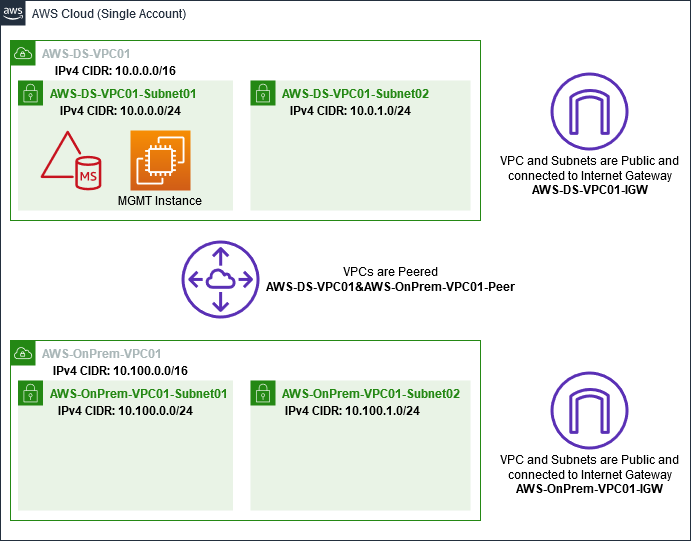
所有 AWS CLI 和 PowerShell 範例都使用來自下方的 VPC 資訊,並內建於 us-west-2 中。您可以選擇任何[支援的區域](https://docs.aws.amazon.com/directoryservice/latest/admin-guide/regions.html)來建立您的環境。如需一般資訊,請參閱 [What is Amazon VPC? (什麼是 Amazon VPC)?](https://docs.aws.amazon.com/vpc/latest/userguide/what-is-amazon-vpc.html)。
**步驟 1:建立兩個 VPC**
在此步驟中,您需要使用下表中指定的參數在相同帳戶中建立兩個 VPCs。 AWS 受管 Microsoft AD 支援使用具有 [共用您的 AWS Managed Microsoft AD](ms_ad_directory_sharing.md)功能的個別帳戶。第一個 VPC 將用於 AWS Managed Microsoft AD。第二個 VPC 將用於稍後可在 [教學課程:從 AWS Managed Microsoft AD 建立對 Amazon EC2 上自我管理 Active Directory 安裝的信任](ms_ad_tutorial_test_lab_trust.md) 中使用的資源。
****
| Managed Active Directory VPC 資訊 | 內部部署 VPC 資訊 |
| --- | --- |
| 名稱標籤: AWS-DS-VPC01 IPv4 CIDR 區塊:10.0.0.0/16 IPv6 CIDR block (IPv6 CIDR 區塊): 無 IPv6 CIDR 區塊 租用:預設 | 名稱標籤: AWS-OnPrem-VPC01 IPv4 CIDR 區塊:10.100.0.0/16 IPv6 CIDR block (IPv6 CIDR 區塊): 無 IPv6 CIDR 區塊 租用:預設 |
如需詳細說明,請參閱 [Creating a VPC (建立 VPC)](https://docs.aws.amazon.com/vpc/latest/userguide/working-with-vpcs.html#Create-VPC)。
**步驟 2:為每個 VPC 建立兩個子網路**
建立 VPC 後,您需要使用下表的指定參數,為每個 VPC 建立兩個子網路。對於這個測試實驗室,每個子網路都會是 /24。這將讓每個子網路發出多達 256 個地址。每個子網路都必須位於不同可用區域中。將每個子網路放在不同可用區域中的獨立子網路是 [建立 AWS Managed Microsoft AD 的先決條件](ms_ad_getting_started.md#ms_ad_getting_started_prereqs) 的其中之一。
****
| AWS-DS-VPC01 子網路資訊: | AWS-OnPrem-VPC01 子網路資訊 |
| --- | --- |
| 名稱標籤: AWS-DS-VPC01-Subnet01 VPC:vpc-xxxxxxxxxxxxxxxxx AWS-DS-VPC01 可用區域:us-west-2a IPv4 CIDR 區塊:10.0.0.0/24 | 名稱標籤: AWS-OnPrem-VPC01-Subnet01 VPC:vpc-xxxxxxxxxxxxxxxxx AWS-OnPrem-VPC01 可用區域:us-west-2a IPv4 CIDR 區塊:10.100.0.0/24 |
| 名稱標籤: AWS-DS-VPC01-Subnet02 VPC:vpc-xxxxxxxxxxxxxxxxx AWS-DS-VPC01 可用區域:us-west-2b IPv4 CIDR 區塊:10.0.1.0/24 | 名稱標籤: AWS-OnPrem-VPC01-Subnet02 VPC:vpc-xxxxxxxxxxxxxxxxx AWS-OnPrem-VPC01 可用區域:us-west-2b IPv4 CIDR 區塊:10.100.1.0/24 |
如需詳細說明,請參閱 [Creating a subnet in your VPC (在 VPC 中建立子網路)](https://docs.aws.amazon.com/vpc/latest/userguide/working-with-vpcs.html#AddaSubnet)。
**步驟 3:建立網際網路閘道並連接到您的 VPC**
由於我們使用的是公有 VPC,因此您將需要使用下表中的指定參數來建立網際網路閘道並將其連接到您的 VPC。這可讓您連接和管理 EC2 執行個體。
****
| AWS-DS-VPC01 網際網路閘道資訊 | AWS-OnPrem-VPC01 網際網路閘道資訊 |
| --- | --- |
| 名稱標籤: AWS-DS-VPC01-IGW VPC:vpc-xxxxxxxxxxxxxxxxx AWS-DS-VPC01 | 名稱標籤: AWS-OnPrem-VPC01-IGW VPC:vpc-xxxxxxxxxxxxxxxxx AWS-OnPrem-VPC01 |
如需詳細說明,請參閱 [Internet gateways (網際網路閘道)](https://docs.aws.amazon.com/vpc/latest/userguide/VPC_Internet_Gateway.html)。
**步驟 4:在 AWS-DS-VPC01 和 AWS-OnPrem-VPC01 之間設定 VPC 對等互連**
由於您先前已建立兩個 VPC,因此您將需要使用下表中的指定參數,使用 VPC 對等連線將它們連線在一起。雖然有許多方法可以連接您的 VPCs,但本教學課程將使用 VPC 對等互連。 AWS 受管 Microsoft AD 支援許多解決方案來連接您的 VPCs,其中一些解決方案包括 [VPC 對等](https://docs.aws.amazon.com/vpc/latest/peering/what-is-vpc-peering.html)互連、[Transit Gateway](https://docs.aws.amazon.com/vpc/latest/tgw/what-is-transit-gateway.html) 和 [VPN](https://docs.aws.amazon.com/vpc/latest/adminguide/Welcome.html)。
****
| |
| --- |
| 對等連線名稱標籤: AWS-DS-VPC01&AWS-OnPrem-VPC01-Peer VPC (請求者):vpc-xxxxxxxxxxxxxxxxx AWS-DS-VPC01 帳戶:我的帳戶 區域:此區域 VPC (接受者):vpc-xxxxxxxxxxxxxxxxx AWS-OnPrem-VPC01 |
如需有關如何使用帳戶中的另一個 VPC 建立 VPC 對等連線的說明,請參閱 [Creating a VPC peering connection with another VPC in your account (使用帳戶中的另一個 VPC 建立 VPC 對等連線)](https://docs.aws.amazon.com/vpc/latest/peering/create-vpc-peering-connection.html#create-vpc-peering-connection-local)。
**步驟 5:將兩個路由新增至每個 VPC 的主要路由表**
為了讓在先前步驟中建立的網際網路閘道和 VPC 對等連線正常運作,您必須使用下表中的指定參數來更新兩個 VPC 的主路由表。您將新增兩個路由:將路由到路由表未明確知道的所有目的地的 0.0.0.0/0,以及將透過上面建立的 VPC 對等連接路由到每個 VPC 的 10.0.0.0/16 或 10.100.0.0/16。
您可以篩選 VPC 名稱標籤 (AWS-DS-VPC01 或 AWS-OnPrem-VPC01),輕鬆找到每個 VPC 的正確路由表。
****
| AWS-DS-VPC01 路由 1 資訊 | AWS-DS-VPC01 路由 2 資訊 | AWS-OnPrem-VPC01 路由 1 資訊 | AWS-OnPrem-VPC01 路由 2 資訊 |
| --- | --- | --- | --- |
| 目的地:0.0.0.0/0 目標:igw-xxxxxxxxxxxxxxxxx AWS-DS-VPC01-IGW | 目的地:10.100.0.0/16 目標:pcx-xxxxxxxxxxxxxxxxx AWS-DS-VPC01&AWS-OnPrem-VPC01-Peer | 目的地:0.0.0.0/0 目標:igw-xxxxxxxxxxxxxxxxx AWS-Onprem-VPC01 | 目的地:10.0.0.0/16 目標:pcx-xxxxxxxxxxxxxxxxx AWS-DS-VPC01&AWS-OnPrem-VPC01-Peer |
如需如何將路由新增至 VPC 路由表的說明,請參閱 [Adding and removing routes from a route table (從路由表新增和移除路由)](https://docs.aws.amazon.com/vpc/latest/userguide/WorkWithRouteTables.html#AddRemoveRoutes)。
## 建立 Amazon EC2 執行個體的安全群組
根據預設, AWS 受管 Microsoft AD 會建立安全群組來管理其網域控制站之間的流量。在本節中,您將需要建立 2 個安全群組 (每個 VPC 一個),這兩組將用來使用下表中的指定參數,管理 EC2 執行個體 VPC 內的流量。您也會新增一項規則,允許從任何地方傳入的 RDP (3389),以及從本機 VPC 傳入的所有流量類型。如需詳細資訊,請參閱 [Windows 執行個體的 Amazon EC2 安全群組](https://docs.aws.amazon.com/AWSEC2/latest/WindowsGuide/using-network-security.html)。
****
| AWS-DS-VPC01 安全群組資訊: |
| --- |
| 安全群組名稱: AWS DS Test Lab 安全群組 描述: AWS DS Test Lab 安全群組 VPC:vpc-xxxxxxxxxxxxxxxxx AWS-DS-VPC01 |
**適用於 AWS-DS-VPC01 的安全群組傳入規則**
****
| Type | 通訊協定 | 連接埠範圍 | 來源 | 流量類型 |
| --- | --- | --- | --- | --- |
| 自訂 TCP 規則 | TCP | 3389 | 我的 IP | 遠端桌面 |
| 所有流量 | 全部 | 全部 | 10.0.0.0/16 | 所有本機 VPC 流量 |
**適用於 AWS-DS-VPC01 的安全群組傳出規則**
****
| Type | 通訊協定 | 連接埠範圍 | 目標 | 流量類型 |
| --- | --- | --- | --- | --- |
| 所有流量 | 全部 | 全部 | 0.0.0.0/0 | 所有流量 |
****
| AWS-OnPrem-VPC01 安全群組資訊: |
| --- |
| 安全群組名稱: AWS OnPrem Test Lab 安全群組。 Description: AWS OnPrem Test Lab 安全群組。 VPC:vpc-xxxxxxxxxxxxxxxxx AWS-OnPrem-VPC01 |
**安全群組輸入規則,適用於 AWS-OnPrem-VPC01**
****
| Type | 通訊協定 | 連接埠範圍 | 來源 | 流量類型 |
| --- | --- | --- | --- | --- |
| 自訂 TCP 規則 | TCP | 3389 | 我的 IP | 遠端桌面 |
| 自訂 TCP 規則 | TCP | 53 | 10.0.0.0/16 | DNS |
| 自訂 TCP 規則 | TCP | 88 | 10.0.0.0/16 | Kerberos |
| 自訂 TCP 規則 | TCP | 389 | 10.0.0.0/16 | LDAP |
| 自訂 TCP 規則 | TCP | 464 | 10.0.0.0/16 | Kerberos 更改/設定密碼 |
| 自訂 TCP 規則 | TCP | 445 | 10.0.0.0/16 | SMB/CIFS |
| 自訂 TCP 規則 | TCP | 135 | 10.0.0.0/16 | 複寫 |
| 自訂 TCP 規則 | TCP | 636 | 10.0.0.0/16 | LDAP SSL |
| 自訂 TCP 規則 | TCP | 49152 - 65535 | 10.0.0.0/16 | RPC |
| 自訂 TCP 規則 | TCP | 3268-3269 | 10.0.0.0/16 | LDAP GC 和 LDAP GC SSL |
| 自訂 UDP 規則 | UDP | 53 | 10.0.0.0/16 | DNS |
| 自訂 UDP 規則 | UDP | 88 | 10.0.0.0/16 | Kerberos |
| 自訂 UDP 規則 | UDP | 123 | 10.0.0.0/16 | Windows 時間 |
| 自訂 UDP 規則 | UDP | 389 | 10.0.0.0/16 | LDAP |
| 自訂 UDP 規則 | UDP | 464 | 10.0.0.0/16 | Kerberos 更改/設定密碼 |
| 所有流量 | 全部 | 全部 | 10.100.0.0/16 | 所有本機 VPC 流量 |
**安全群組傳出規則,適用於 AWS-OnPrem-VPC01**
****
| Type | 通訊協定 | 連接埠範圍 | 目標 | 流量類型 |
| --- | --- | --- | --- | --- |
| 所有流量 | 全部 | 全部 | 0.0.0.0/0 | 所有流量 |
如需如何建立規則並將規則新增至安全群組的詳細說明,請參閱 [Working with security groups (使用安全群組)](https://docs.aws.amazon.com/vpc/latest/userguide/VPC_SecurityGroups.html#WorkingWithSecurityGroups)。