Amazon Redshift 將不再支援從修補程式 198 開始建立新的 Python UDFs。現有 Python UDF 將繼續正常運作至 2026 年 6 月 30 日。如需詳細資訊,請參閱[部落格文章](https://aws.amazon.com/blogs/big-data/amazon-redshift-python-user-defined-functions-will-reach-end-of-support-after-june-30-2026/)。
本文為英文版的機器翻譯版本,如內容有任何歧義或不一致之處,概以英文版為準。
# 將佈建的叢集遷移至 Amazon Redshift Serverless
您可以將現有的佈建叢集移轉至 Amazon Redshift Serverless,以啟用隨需和自動擴展運算資源的功能。將佈建叢集移轉至 Amazon Redshift Serverless 後,您可以僅支付使用的資源,並根據工作負載需求自動擴展容量,以最佳化成本。移轉的常見使用案例包括執行臨機查詢、定期資料處理任務,或在不過度佈建資源的情況下處理無法預測的工作負載。執行下列這組任務,將佈建的 Amazon Redshift 叢集移轉至無伺服器部署選項。
## 建立已佈建叢集的快照
**注意**
當您將已佈建叢集的快照還原到無伺服器命名空間時,Amazon Redshift 會自動將交錯索引鍵轉換為複合索引鍵。
若要將資料從已佈建的叢集傳輸到 Amazon Redshift Serverless,請建立已佈建叢集的快照,然後在 Amazon Redshift Serverless 中還原快照。
**注意**
在將資料遷移到無伺服器工作群組之前,請先確保已佈建的叢集需求與您在 Amazon Redshift Serverless 中選擇的 RPU 數量相容。
建立已佈建叢集的快照
1. 登入 AWS 管理主控台 ,並在 [https://console.aws.amazon.com/redshiftv2/](https://console.aws.amazon.com/redshiftv2/):// 開啟 Amazon Redshift 主控台。
1. 在導覽選單中,選擇**叢集**、**快照**,然後選擇**建立快照**。
1. 輸入快照定義屬性,然後選擇**建立快照**。可能要等一會兒才能使用此快照。
若要將已佈建叢集的快照還原至無伺服器命名空間:
1. 登入 AWS 管理主控台 ,並在 [https://console.aws.amazon.com/redshiftv2/](https://console.aws.amazon.com/redshiftv2/):// 開啟 Amazon Redshift 主控台。
1. 從 Amazon Redshift 已佈建的叢集主控台開始,然後導覽至**叢集**、**快照**頁面。
1. 選擇要使用的快照。
1. 選擇**還原快照**、**還原至無伺服器命名空間**。
1. 選擇要作為快照還原目的地的命名空間。
1. 確認您要從快照還原。此動作會使用已佈建叢集中的資料取代無伺服器端點中的所有資料庫。選擇 **Restore** (還原)。
如需已佈建叢集快照的相關資訊,請參閱 [Amazon Redshift 快照](https://docs.aws.amazon.com/redshift/latest/mgmt/working-with-snapshots.html)。
## 使用驅動程式連線至 Amazon Redshift Serverless
若要使用偏好的 SQL 用戶端連線至 Amazon Redshift Serverless,您可以使用 Amazon Redshift 所提供的 [JDBC 驅動器 2.x 版](https://docs.aws.amazon.com/redshift/latest/mgmt/jdbc20-install.html)。我們建議您使用最新版 Amazon Redshift JDBC 驅動器 2.x 版連線至 Amazon Redshift。連接埠號碼是選用的。如果未包含,Amazon Redshift Serverless 會預設為連接埠號碼 5439。您可以變更為 5431 至 5455 或 8191 至 8215 之連接埠範圍內的其他連接埠。若要變更無伺服器端點的預設連接埠,請使用 AWS CLI 和 Amazon Redshift API。
若要尋找用於 JDBC、ODBC 或 Python 驅動程式的確切端點,請參閱 Amazon Redshift Serverless 中的**工作群組組態**。您也可以使用 Amazon Redshift Serverless API 操作`GetWorkgroup`或 AWS CLI 操作`get-workgroups`來傳回工作群組的相關資訊,然後進行連線。
### 使用密碼型驗證進行連線
若要使用具有密碼型身分驗證的 Amazon Redshift JDBC 驅動器 2.x 版建立連線,請使用下列語法:
```
jdbc:redshift://<{{workgroup-name}}>.<{{account-number}}>.<{{aws-region}}>.redshift-serverless.amazonaws.com:5439/?username={{username}}&password={{password}}
```
若要使用具有密碼型身分驗證的 Amazon Redshift Python 連接器建立連線,請使用下列語法:
```
import redshift_connector
with redshift_connector.connect(
host='<{{workgroup-name}}>.<{{account-number}}>.<{{aws-region}}>.redshift-serverless.amazonaws.com',
database='<{{database-name}}>',
user='{{username}}',
password='{{password}}'
# port value of 5439 is specified by default
) as conn:
pass
```
若要使用具有密碼型身分驗證的 Amazon Redshift ODBC 驅動器 2.x 版建立連線,請使用下列語法:
```
Driver={Amazon Redshift ODBC Driver (x64)}; Server=<{{workgroup-name}}>.<{{account-number}}>.<{{aws-region}}>.redshift-serverless.amazonaws.com; Database={{database-name}}; User={{username}}; Password={{password}}
```
### 使用 IAM 進行連線
如果您偏好使用 IAM 登入,請使用 Amazon Redshift Serverless [https://docs.aws.amazon.com//redshift-serverless/latest/APIReference/API_GetCredentials.html](https://docs.aws.amazon.com//redshift-serverless/latest/APIReference/API_GetCredentials.html) API 操作。
若要使用 IAM 身分驗證,請將 `iam:` 新增至 Amazon Redshift JDBC URL 的 `jdbc:redshift:` 後方,如下列範例所示。
```
jdbc:redshift:iam://<{{workgroup-name}}>.<{{account-number}}>.<{{aws-region}}>.redshift-serverless.amazonaws.com:5439/<{{database-name}}>
```
此 Amazon Redshift Serverless 端點不支援自訂 dbUser、dbGroup 或自動建立。根據預設,驅動器會在登入時自動建立資料庫使用者。然後,它會根據 IAM 中指定的標籤,或根據身分提供者 (IdP) 中定義的群組,將使用者指派至 Amazon Redshift 資料庫角色。
請確定 AWS 您的身分具有適用於 `redshift-serverless:GetCredentials`動作的正確 IAM 政策。以下是範例 IAM 政策,將正確的許可授予 AWS 身分以連線至 Amazon Redshift Serverless。如需有關 IAM 許可的詳細資訊,請參閱《IAM 使用者指南》**中的[新增和移除 IAM 身分許可](https://docs.aws.amazon.com/IAM/latest/UserGuide/access_policies_manage-attach-detach.html)。
------
#### [ JSON ]
****
```
{
"Version":"2012-10-17",
"Statement": [
{
"Sid": "",
"Effect": "Allow",
"Action": "redshift-serverless:GetCredentials",
"Resource": "*"
}
]
}
```
------
若要使用具有 IAM 型身分驗證的 Amazon Redshift Python 連接器建立連線,請在您的程式碼中使用 `iam=true`,如下列語法所示:
```
import redshift_connector
with redshift_connector.connect(
iam=True,
host='<{{workgroup-name}}>.<{{account-number}}>.<{{aws-region}}>.redshift-serverless.amazonaws.com',
database='<{{database-name}}>'
<{{IAM credentials}}>
) as conn:
pass
```
對於 `IAM credentials`,您可以使用任何憑證,包括以下所列:
+ AWS 設定檔組態。
+ IAM 憑證 (存取金鑰 ID、私密存取金鑰,以及選用的工作階段符記)。
+ 身分提供者聯合。
若要使用具有 IAM 型身分驗證的 Amazon Redshift ODBC 驅動器 2.x 版建立連線,請使用下列語法:
```
Driver={Amazon Redshift ODBC Driver (x64)}; IAM=true; Server=<{{workgroup-name}}>.<{{account-number}}>.<{{aws-region}}>.redshift-serverless.amazonaws.com; Database={{database-name}}; Profile={{aws-profile-name}};
```
### 透過 GetClusterCredentials API 使用 IAM 進行連線
**注意**
連線至 Amazon Redshift Serverless 時,建議您使用 [https://docs.aws.amazon.com//redshift-serverless/latest/APIReference/API_GetCredentials.html](https://docs.aws.amazon.com//redshift-serverless/latest/APIReference/API_GetCredentials.html) API。此 API 提供完整的角色型存取控制 (RBAC) 功能,以及 `GetClusterCredentials` 中還未提供的其他新功能。我們支援 `GetClusterCredentials` API 來簡化從佈建叢集轉換到無伺服器工作群組的程序,但強烈建議您盡快使用 `GetCredentials` 進行移轉,以獲得最佳相容性。
您可以使用 [https://docs.aws.amazon.com//redshift/latest/APIReference/API_GetClusterCredentials.html](https://docs.aws.amazon.com//redshift/latest/APIReference/API_GetClusterCredentials.html) API 建立與 Amazon Redshift Serverless 的連線。若要實作此身分驗證方法,請納入下列參數來修改您的用戶端或應用程式:
+ `iam=true`
+ `clusterid/cluster_identifier=redshift-serverless-<{{workgroup-name}}>`
+ `region=<{{aws-region}}>`
下列範例示範這三種驅動器的 BrowserSAML 外掛程式。這代表數種可用的身分驗證方法之一。這些範例經過修改後,可根據您的特定需求使用替代身分驗證方法或外掛程式。
#### GetClusterCredentials 的 IAM 政策許可
以下範例 IAM 政策具有使用 `GetClusterCredentials` 搭配 Amazon Redshift Serverless 時所需的許可:
------
#### [ JSON ]
****
```
{
"Version":"2012-10-17",
"Statement": [
{
"Sid": "VisualEditor0",
"Effect": "Allow",
"Action": [
"redshift-serverless:GetWorkgroup",
"redshift-serverless:GetNamespace",
"redshift:GetClusterCredentials",
"redshift:CreateClusterUser",
"redshift:JoinGroup",
"redshift:ExecuteQuery",
"redshift:FetchResults",
"redshift:DescribeClusters",
"redshift:DescribeTable"
],
"Resource": [
"arn:aws:redshift-serverless:us-east-1:{{111122223333}}:workgroup/{{workgroup-name}}",
"arn:aws:redshift-serverless:us-east-1:{{111122223333}}:namespace/{{namespace-name}}",
"arn:aws:redshift:us-east-1:{{111122223333}}:cluster:{{cluster-name}}",
"arn:aws:redshift:us-east-1:{{111122223333}}:dbuser:{{database-name}}/${redshift:DbUser}"
]
}
]
}
```
------
若要使用具有 `GetClusterCredentials` 的 Amazon Redshift JDBC 驅動器 2.x 版建立連線,請使用下列語法:
```
jdbc:redshift:iam://redshift-serverless-<{{workgroup-name}}>:<{{aws-region}}>/<{{database-name}}>?plugin_name=com.amazon.redshift.plugin.BrowserSamlCredentialsProvider&login_url=<{{single sign-on URL from IdP}}>"
```
若要使用具有 `GetClusterCredentials` 的 Amazon Redshift Python 連接器建立連線,請使用下列語法:
```
import redshift_connector
with redshift_connector.connect(
iam=True,
cluster_identifier='redshift-serverless-<{{workgroup-name}}>',
region='<{{aws-region}}>',
database='<{{database-name}}>',
credentials_provider='BrowserSamlCredentialsProvider'
login_url='<{{single sign-on URL from IdP}}>'
# port value of 5439 is specified by default
) as conn:
pass
```
若要使用具有 `GetClusterCredentials` 的 Amazon Redshift ODBC 驅動器 2.x 版建立連線,請使用下列語法:
```
Driver= {Amazon Redshift ODBC Driver (x64)}; IAM=true; isServerless=true; ClusterId=redshift-serverless-<{{workgroup-name}}>; region=<{{aws-region}}>; plugin_name=BrowserSAML;login_url=<{{single sign-on URL from IdP}}>
```
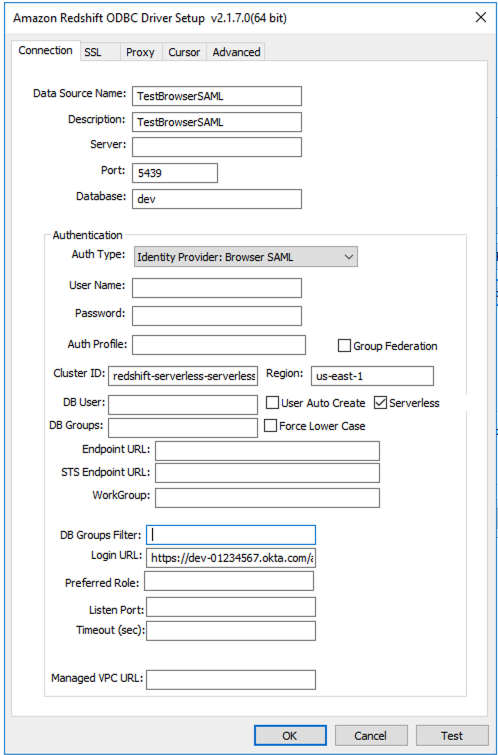
以下是 Windows 中 ODBC DSN 組態範例:
## 使用 Amazon Redshift Serverless SDK
如果您使用 Amazon Redshift SDK 撰寫了任何管理指令碼,則必須使用新的 Amazon Redshift Serverless SDK 來管理 Amazon Redshift Serverless 和相關資源。如需可用 API 操作的相關資訊,請參閱《[Amazon Redshift Serverless API 參考指南](https://docs.aws.amazon.com/redshift-serverless/latest/APIReference/Welcome.html)》。