Amazon Monitron is no longer open to new customers. Existing customers can
continue to use the service as normal. For capabilities similar to Amazon
Monitron, see our blog post
Adding users as an admin
As an admin, you can add other users (including other admin users) in the Amazon Monitron web app.
-
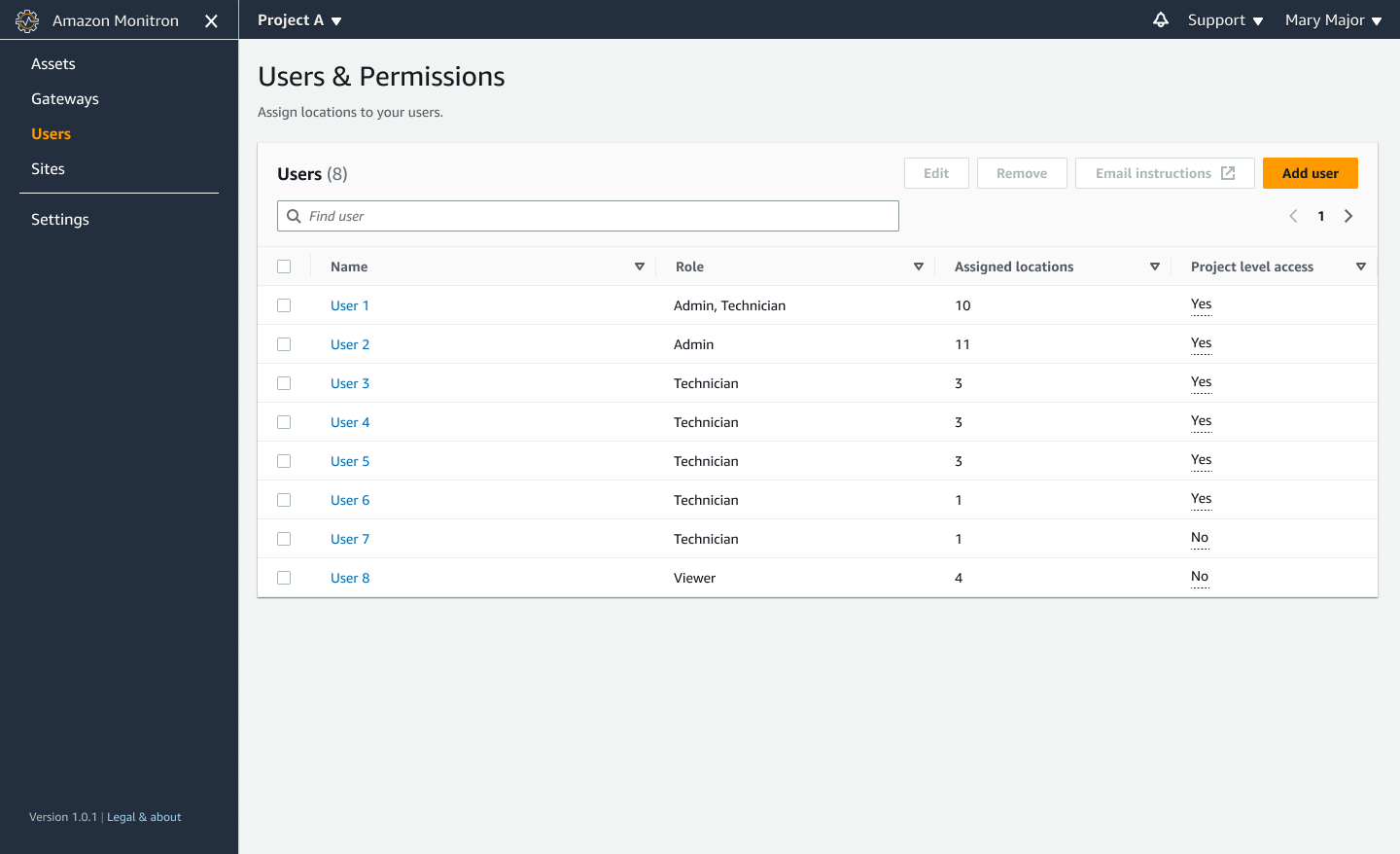
Navigate to the project or site that you want to add a user to, and then to the Users list.
-
Enter a user name. Amazon Monitron searches the user directory for the user.
Choose the user from the list and the role you want to assign to the user: Admin, Technician, or Viewer.
Then, choose Add user.

-
The new user appears on the Users list.

Send the new user an email invitation with a link for accessing the project and downloading the Amazon Monitron mobile app. For more information, see Sending an email invitation.
