Amazon Monitron is no longer open to new customers. Existing customers can
continue to use the service as normal. For capabilities similar to Amazon
Monitron, see our blog post
Identifying sensor position
Use the mobile app to find sensors in the factory or shop floor without searching through your asset list.
Topics
Identifying paired sensor
-
If the sensor has been paired, select the scan sensor icon from your asset page to scan any sensor affiliated with your project.

-
Select a desired asset to scan.
-
Hold your phone near the sensor and scan it to read its position details. It may take a few moments for the mobile app to generate results.

-
After you've scanned your sensor successfully, your mobile app will show the sensor's position and details.


Missing or unread sensor
If the sensor is not read during the scan, place your phone correctly over the sensor until you see a success message.

If no sensor was added, add an asset and try again.
Permissions and site commissioning issues
If the sensor hasn’t been commissioned for a site, commission the sensor and try again.

If the sensor was commissioned for a site that you can't access, update site permissions in the app and try again to read the sensor’s position details.
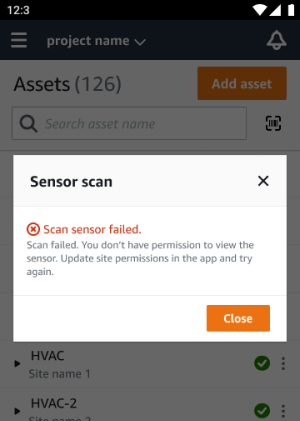
Scanning sensor from another site
If you scan a sensor that is commissioned for another site, and you're redirected to that site, scan the sensor on that site.

